
A Tour of the New App Builder Layout

Getting Started
From the new homepage, select a study, then click the Study acitivty tab on the left

Study Activity
The Study Activity view shows a list of all participants in your study, along with any gaps in their data (more on this below). Using the buttons in the top right, you can also add participants to your study or export your participant list.

Participant Details
Click on any participant to open their details in a pop-up window.
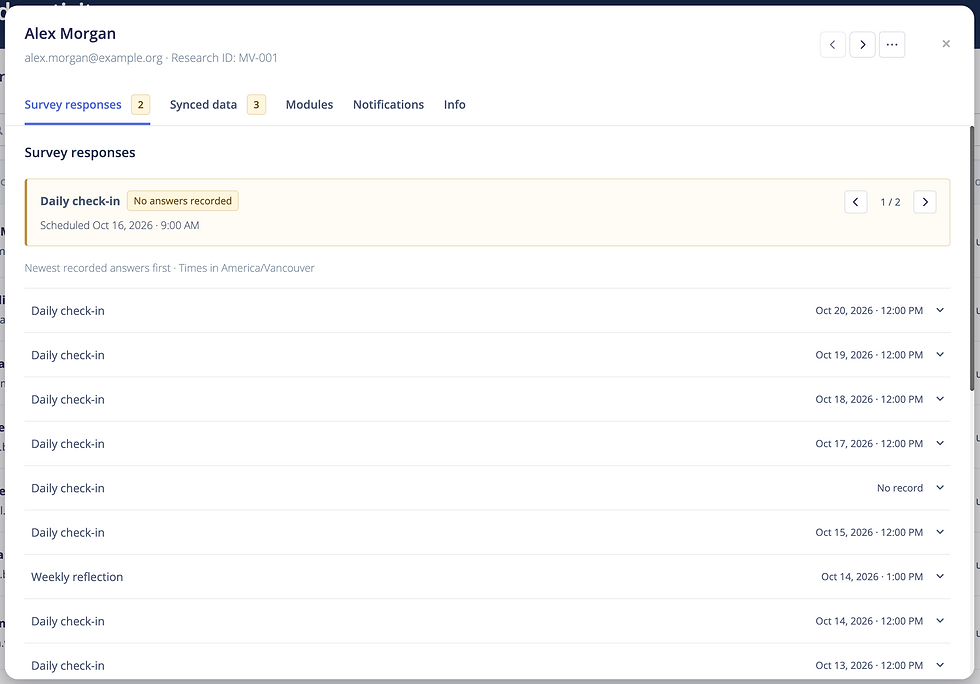
Survey Responses
The first tab lists every survey the participant has completed. Click on a survey to see their answers at a glance.

If a participant hasn’t completed a survey that’s available to them, a notice at the top of the tab will show which surveys are outstanding and when each one was first made available.

Synced Data
The Synced Data tab lets you select a metric and view the participant’s data day by day.

As with surveys, any day with no recorded data will be flagged, making it easy to spot participants with missing data.

Modules
The Modules tab shows the release status of each module and whether the participant has completed it.

Notifications
The Notifications tab lists every notification sent to the participant and whether it was received.

Participant Info
Finally, the Participant Info tab lets you view and edit the participant’s account details.


